Installation
Download, import and publish Flex Design System as a Figma library.
Step 1
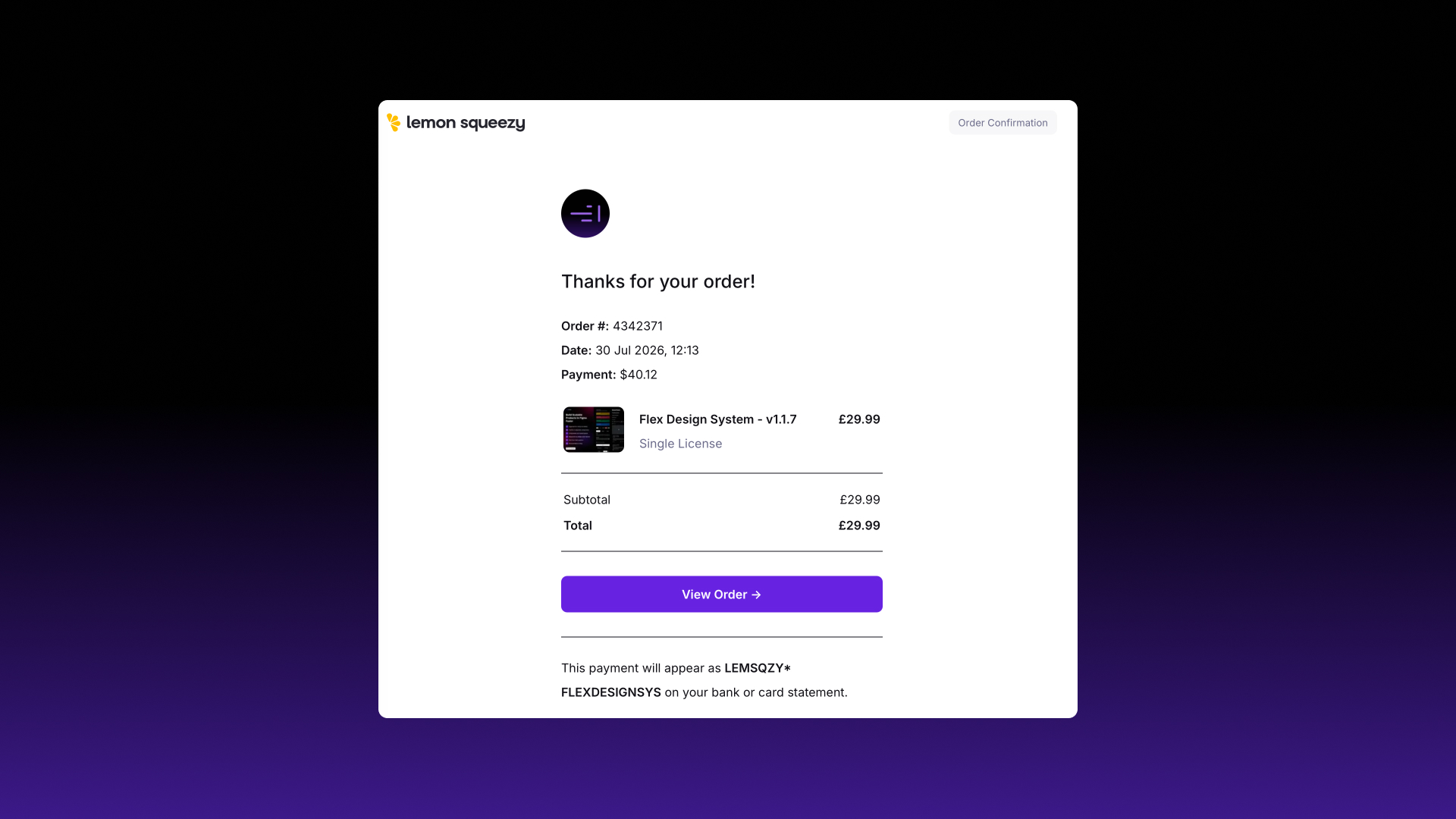
After purchasing Flex Design System, you’ll receive an email receipt from Lemon Squeezy with a link to download the ZIP file. You can download it as many times as you need from that link.
No licence key is needed. Nothing has to be entered into Figma to activate the file.
If you have trouble accessing your download, please get in touch.
Step 2
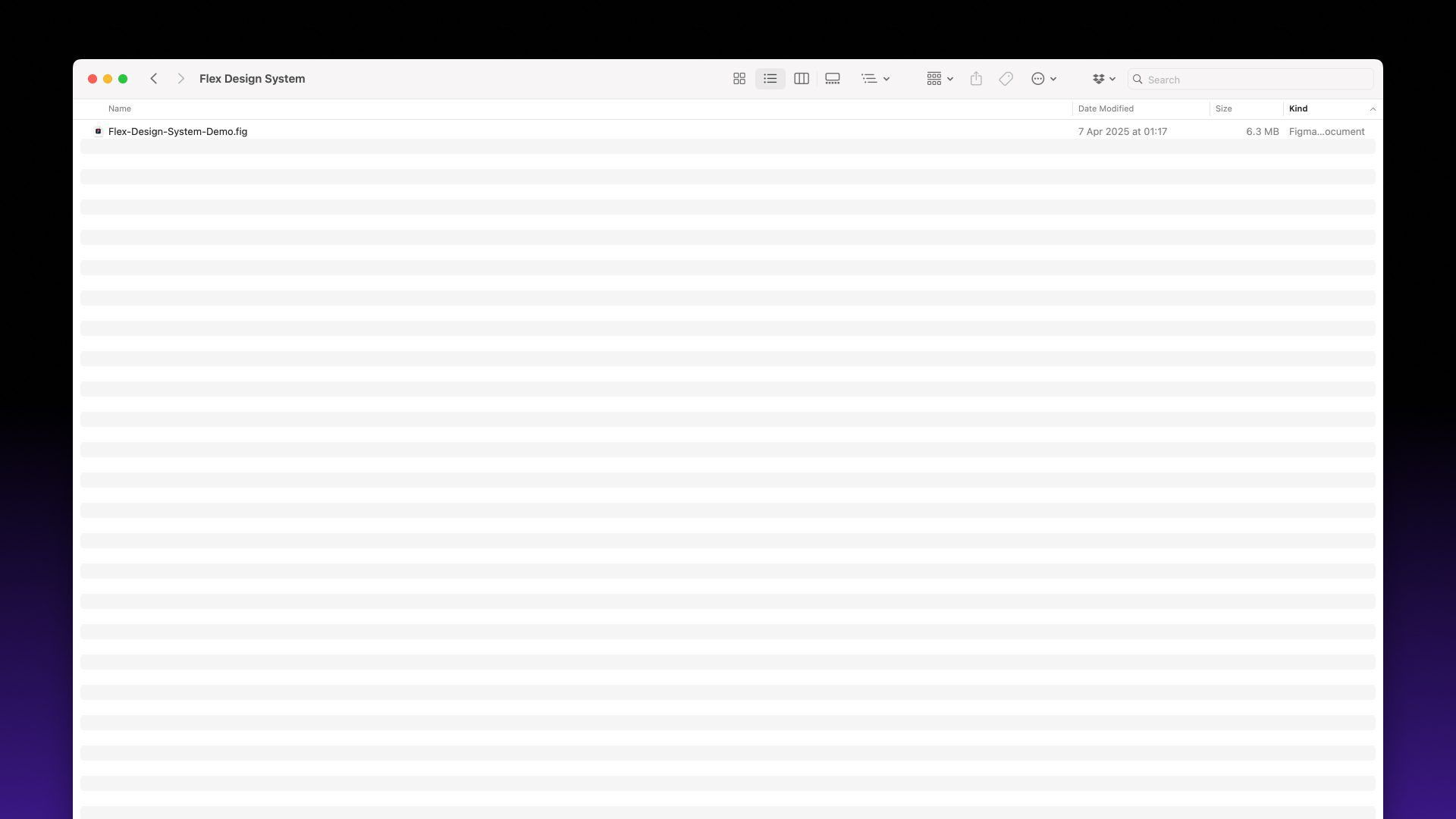
Once you have downloaded the ZIP file, locate and unzip it on your computer. Inside you’ll find the Flex Design System .fig file, a Guidelines folder and a README.
Step 3
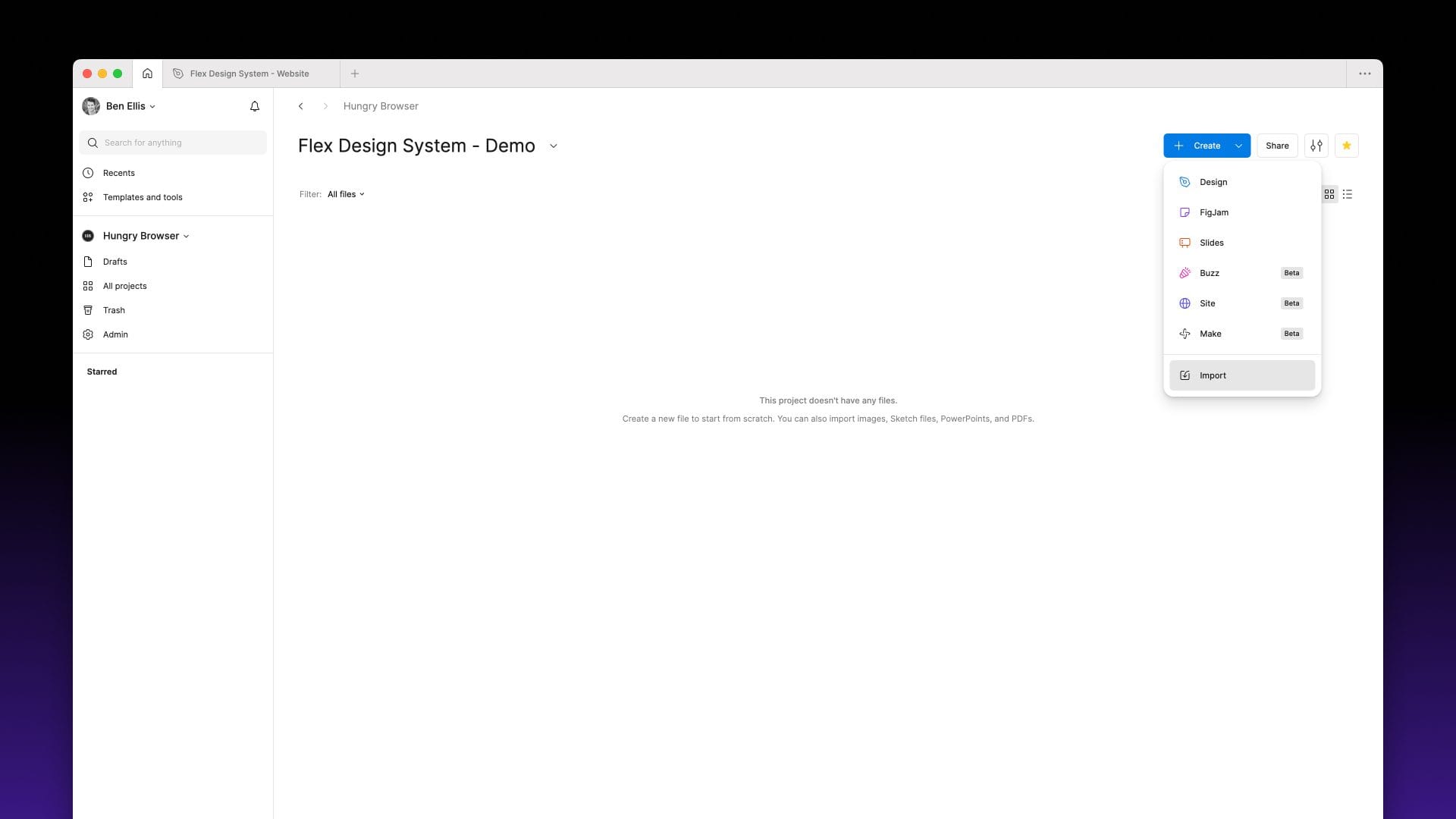
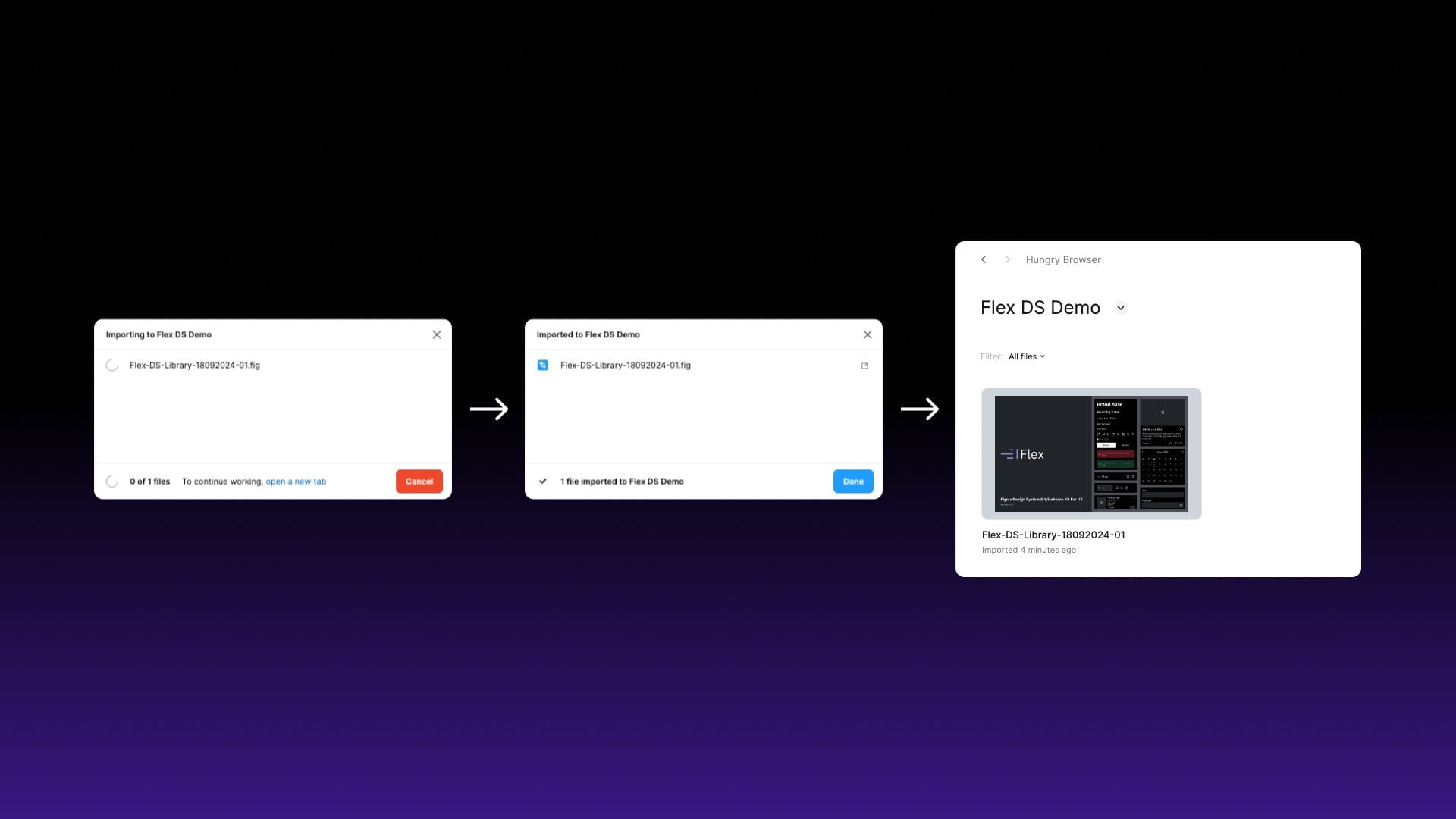
Ensure you have Figma open and navigate to the home screen (house icon). Select the ‘Create’ button and then import, or drag the .FIG file from your computer’s file browser into Figma.
Step 4
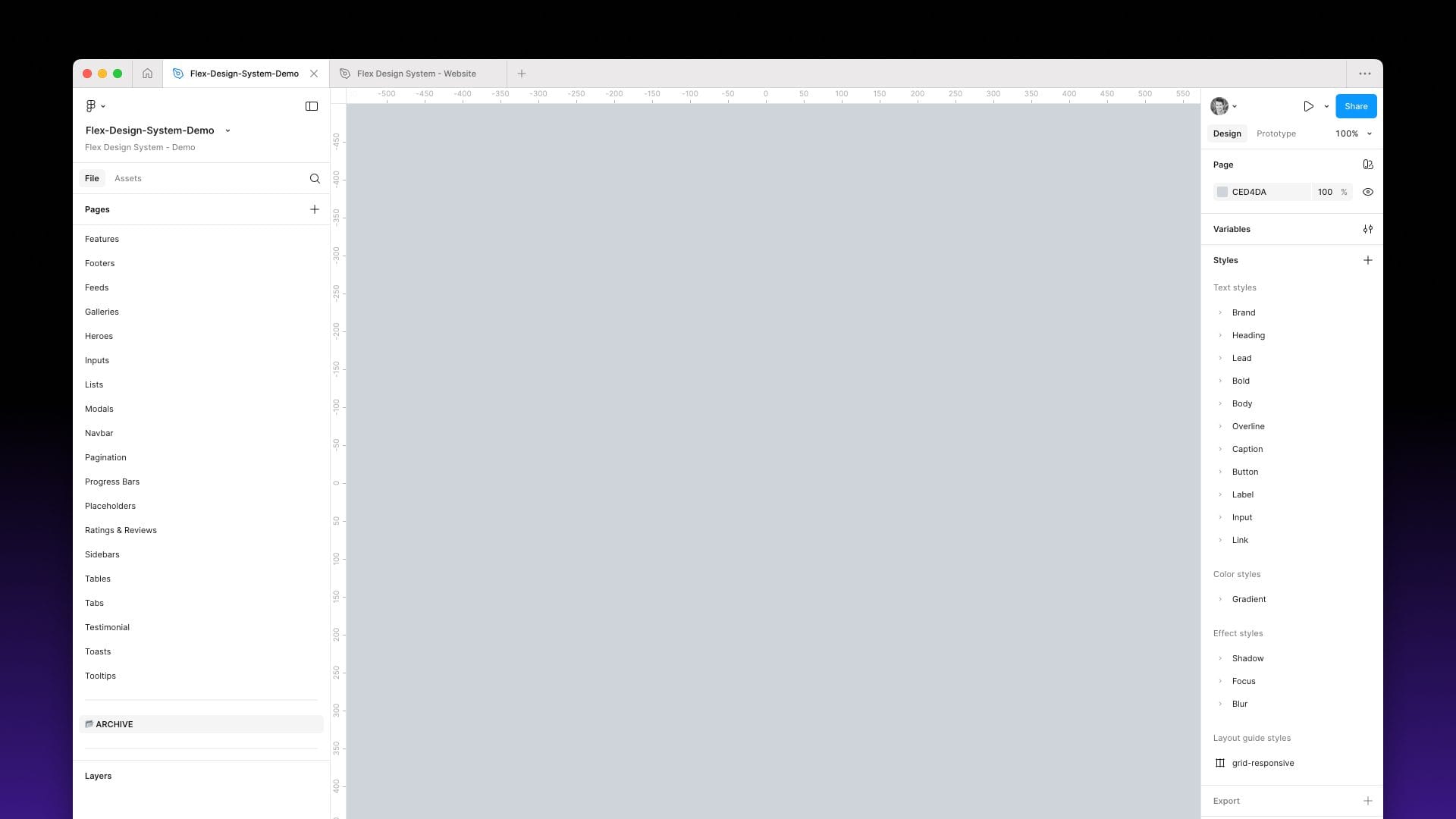
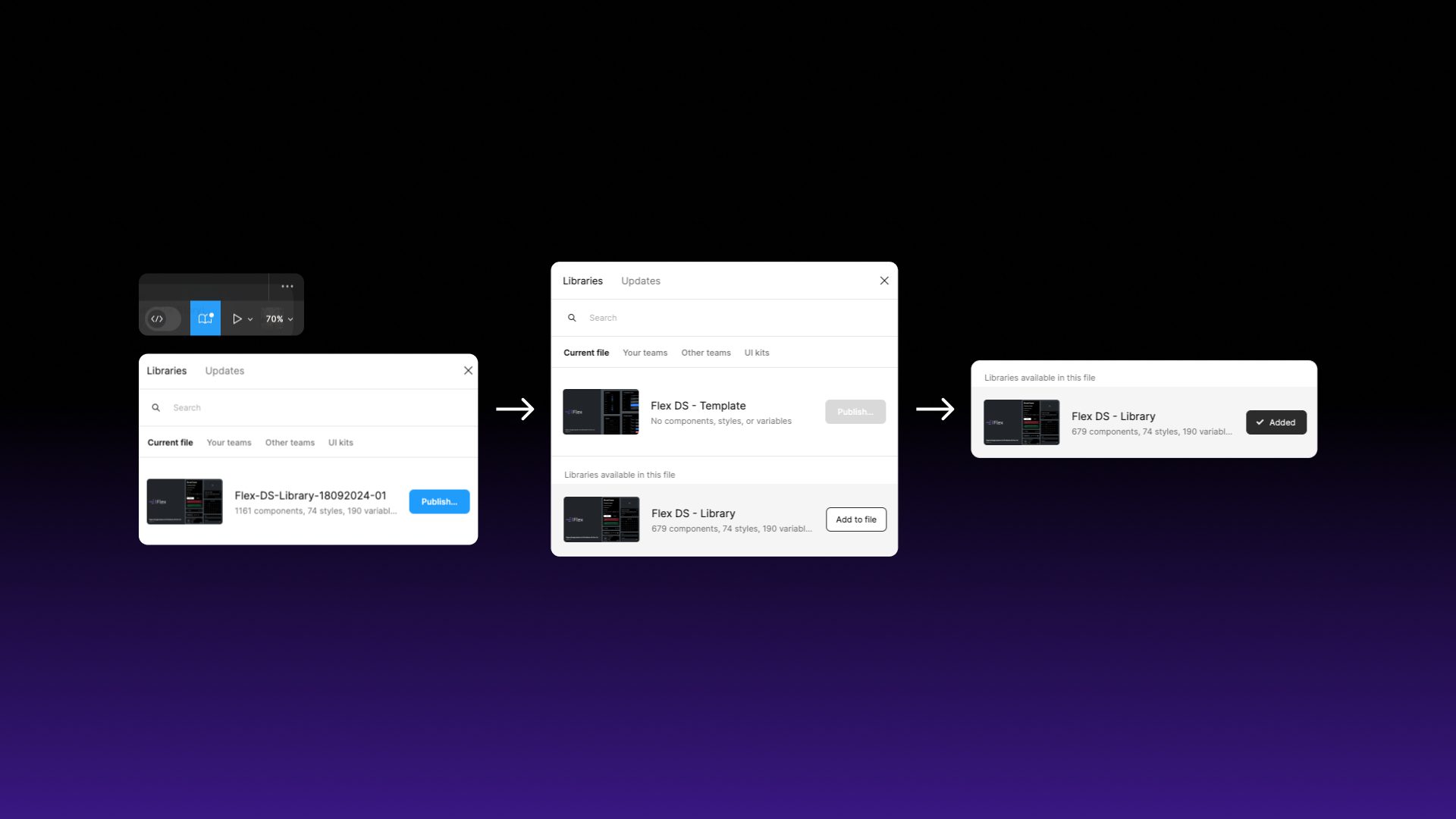
Once imported, open the newly added Figma file and select the Libraries tab and select Publish. Depending on the speed of your internet connection, it might take a few minutes to upload.
Step 5 (optional)
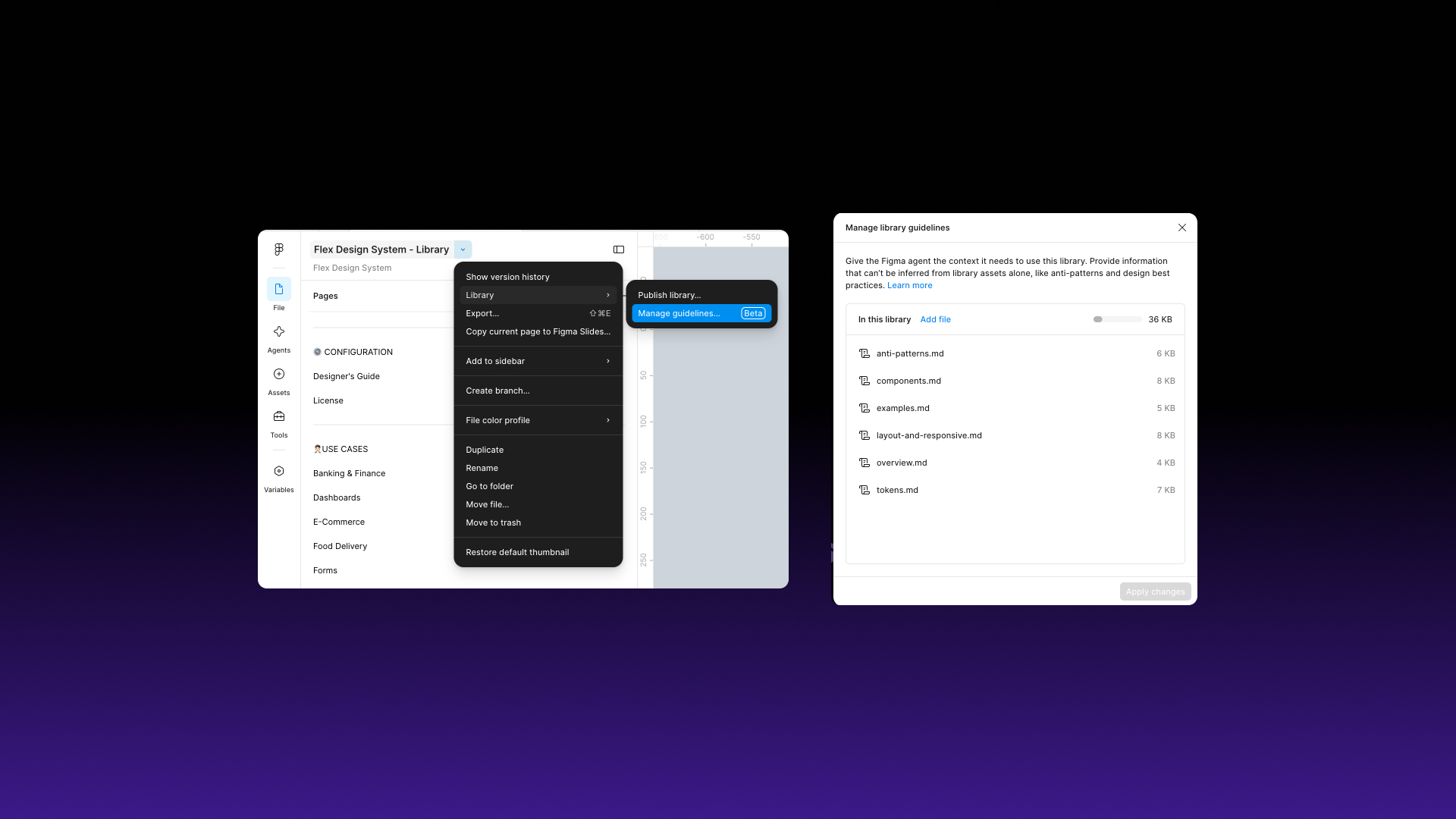
If you use Figma’s AI agent, add the Flex guidelines to your library. They tell the agent which variables, components and breakpoint settings to use, and which mistakes to avoid. Figma doesn’t include guidelines in .fig files, so they come as separate files in the Guidelines folder.
- In your published Flex library file, open the file menu and select Library > Manage guidelines…
- Click Upload and select the six .md files from the Guidelines folder.
- Click Apply changes.
Guidelines need a Figma Professional plan or above. Find out more on the AI guidelines page.
Step 6
Create a new Figma design file and select the Libraries tab. This will enable Flex Design System as a library.
Step 7
You should now see a list of components in the Assets tab and can now start using them in your project.