
Typography
How text styles and tokens make Flex typography change with screen size and theme.
Responsive typography
Flex Design System comes pre-built with a responsive and themed typography system.
It follows best practice and is powered by both text styles and variables.
By separating font size and font families into separate collections, typography can adapt to not only a different breakpoint (screen) size, but also a different theme (e.g. light or dark). This provides increased flexibility.
- Typography sizing is customised via the Semantic / Breakpoint collection
- Font families etc are customised via the Semantic / Theme collection
Customisation
A comprehensive set of text styles have been set up in Flex Design System to cover the most common use cases.
You can customise and extend these to your needs.
Text sizing will automatically respond, depending on the breakpoint mode (small, medium or large).
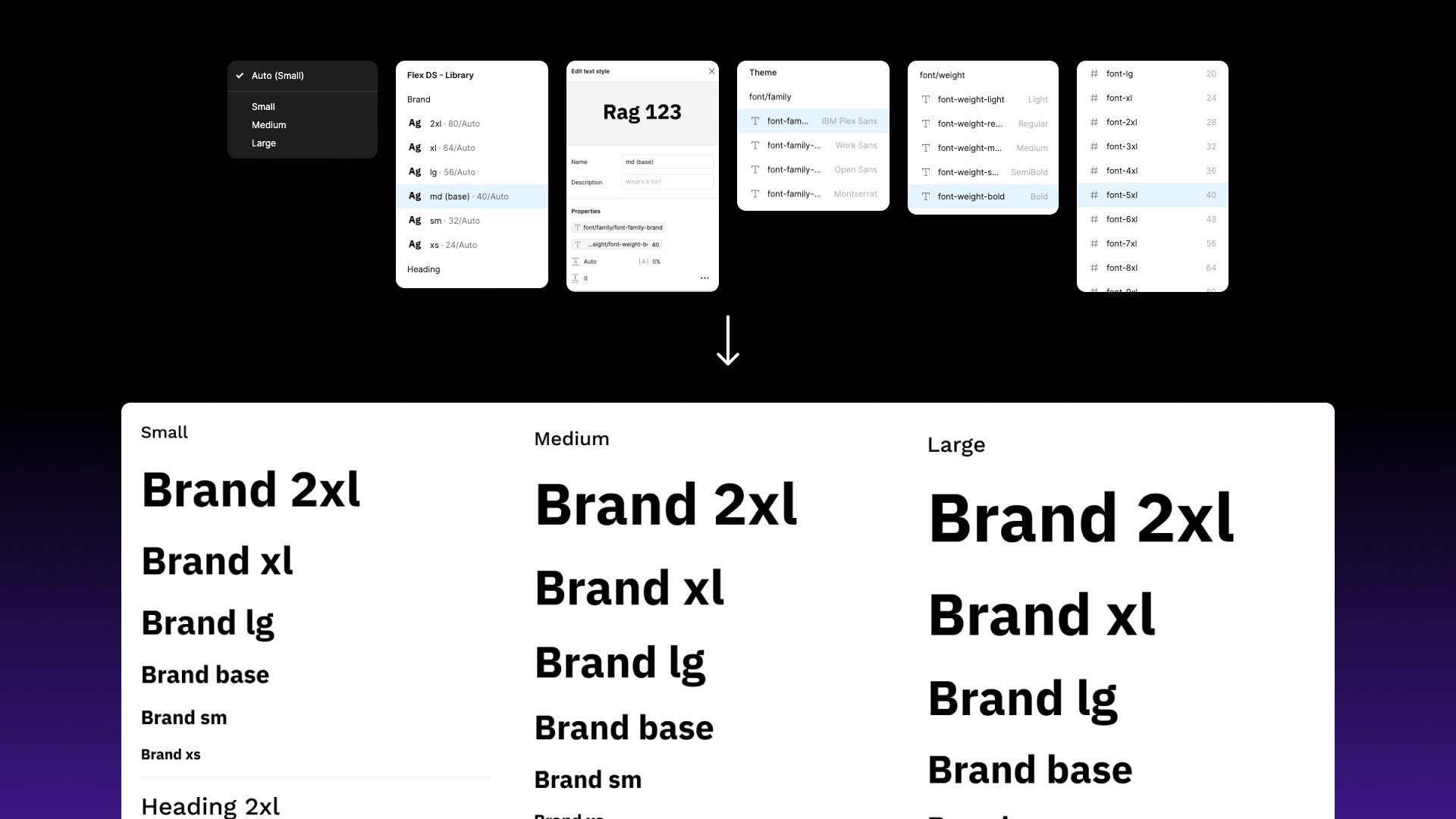
Which text styles are included?
Flex includes text styles grouped by role:
- heading: page and section headings, from
heading/2xstoheading/2xl - brand: display headings in the brand typeface
- lead: introductory and summary paragraphs
- body: general reading text, from
body/2xstobody/xl.body/mdis the default. - bold: emphasised labels and inline text
- link, label, input, button and caption: text for specific UI elements
- overline: uppercase labels above headings
Each style has a description explaining when to use it.
How does a text style become responsive?
Take heading/md as an example:
- Its size comes from a
font/*variable in Semantic / Breakpoint, so it changes between Small, Medium and Large. - Its font family and weight come from
font/family/*andfont/weight/*in Semantic / Theme.
Apply the style once and it adapts to whichever breakpoint and theme modes are set on the parent frame.